SlideLizard 1.5 Update

12.06.18  •  #NewRelease

Contents


Admit it: You always wanted to know who's in your audience. Every single person. At best with E-Mail address.

We have always wanted that too. Therefore we just integrated it into SlideLizard:

Read on to find out more!


Participant E-Mails & Export

See in detail who participated in your presentation and notify all participants by E-Mail or export a list as an Excel document.


Collect E-Mail addresses

Require a participant's E-Mail address to download your slides or open shared documents.


Prevent early viewing

Restrict the download of your presentation slides or shared documents (e.g. a handout) until the end of your presentation.


Share local documents
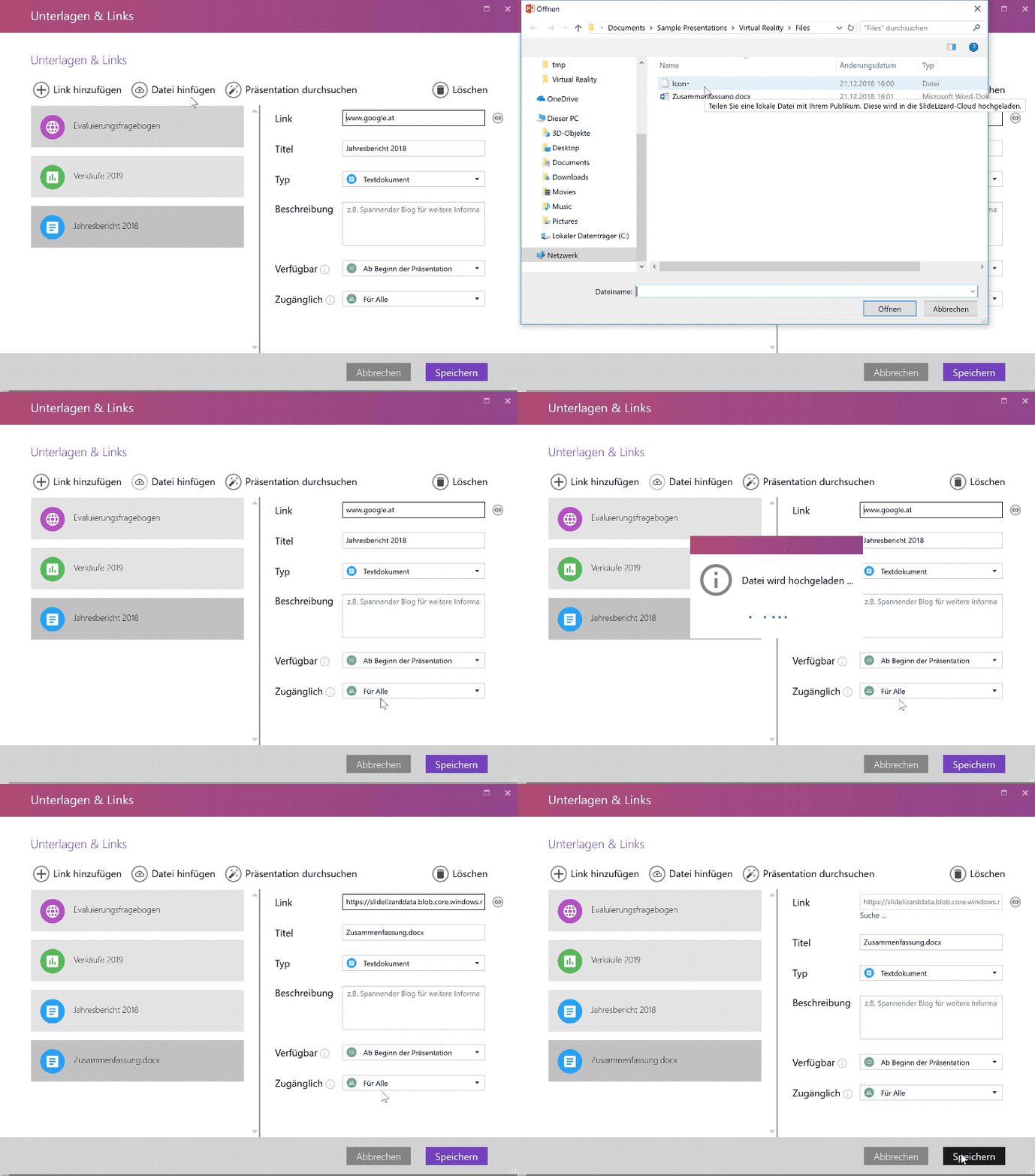
From now on, you can also upload and share local documents with your attendees.


Enjoy!


To update the SlideLizard PowerPoint Add-In, just open PowerPoint and you'll get a update dialog.
Don't have it installed yet? Download it here.


About the author

Daniel Amerbauer

Daniel is the Co-founder and CEO of SlideLizard. Perfectionist by nature, but also a passionate designer and developer.


Top blog articles
More posts

How to add a YouTube Video in PowerPoint

SlideLizard joins Microsoft for Startups

LIZ – Autopilot for PowerPoint

LIZ AI – Autopilot for PowerPoint

With LIZ AI, communication becomes intelligent –
and your company transforms into an Agentic Enterprise

Experience LIZ AI

The big SlideLizard presentation glossary

B2B Events

B2B means Business to Business. B2B events are between at least two companys. They help to build interpersonal relationships, which are important for a successful company.

Learn more

Animations in PowerPoint

Animations in PowerPoint are visual effects that are applied to different items like graphics, title or bullet points, instead of the slides. There are many different animations like: Appear, Fade, Fly in.

Learn more

Outline view

The outline view in PowerPoint shows a list with the whole text of all slides on the left of the screen. There are no images and graphics displayed in this view. It's useful for editing the presentation and can also be saved as a Word document.

Learn more

Slide Master

To create your own Template in PowerPoint it is best to use the Slide Master. After updating the Slide Master with your design, all slides (fonts, colours, images, …) adapt to those of the Slide Master.

Learn more

Be the first to know!

The latest SlideLizard news, articles, and resources,
sent straight to your inbox.

- or follow us on -