
You are probably familiar with the following problem – you wanted to insert a PDF document into your PowerPoint presentation, but you didn't know exactly how to do it. Inserting PDF files into a PowerPoint presentation is quite simple. Whether with an online converter or directly as a PDF file, we will show you 5 different ways to insert a PDF into a presentation.
-
Content
What is a PDF actually?
PDF means Portable Document Format. So simply put, a PDF file is a file that looks the same on any device, no matter what operating system or hardware. This has its advantages, as the original formatting of the author of the PDF is preserved.
So how do you insert a PDF into a presentation?
There isn’t just one way to do it. There are 5 ways to insert a PDF into
PowerPoint.
- Insert PDF as screenshot
- Insert PDF as object
- Insert PDF as link
- Convert PDF online
- Share PDF with participants via SlideLizard
1. Insert PDF as screenshot
A proven method, very simple and easy to implement is to insert the PDF Document as a screenshot.
-
Open the Snipping Tool (already pre-installed on Windows).
![Snipping Tool]()
Then click on "New" in the upper left corner. Your screen should turn white shortly after. Now you can draw a frame around the important data you need for your presentation. -
Save the file as a PNG.
![save screenshot]()
-
Open PowerPoint and go to Insert > Image and select the appropriate file.
![insert screenshot]()


2. Insert PDF as an object
Objects have a slightly lower quality, however, this changes as soon as you open them.
-
Go to Insert > Object > Create from file > Browse.
![insert object]()
![browse object]()
- Select the desired file.


3. Insert PDF as link
Links make working with PDFs quite easy and they are also easy to insert.
-
Drag a text field where you want the link to the PDF to be placed.
![insert text field]()
-
Go to insert > link and then browse link.
![position link in powerpoint]()
-
Select the desired file at "Existing File or Web page".
![insert link powerpoint]()


4. Convert PDF online
There is also the possibility to convert PDFs into slides online. There are
free converters online that turn PDFs into PowerPoint slides. Here are some
examples we have tested for you. The appearance varies depending on which
converter you use.
| Name | Free? | Link to Download | Supported operating system |
| PDF24 Tools | Yes | Download | Windows |
| Ilovepdf | Yes | Download | MacOs und Windows |
| Soda PDF online | Yes | Download | Windows |
5. Share slides as PDF with your audience
Another way to make a PDF file available to your presentation audience is to share it using SlideLizard LIVE. You can easily send your presentation slides and materials to your audience as a PDF and never have to worry about printing everything out for everyone. It's easy and free.
- First download SlideLizard. Here's the Download Link for SlideLizard. The installation is easy, just follow the given instructions.
-
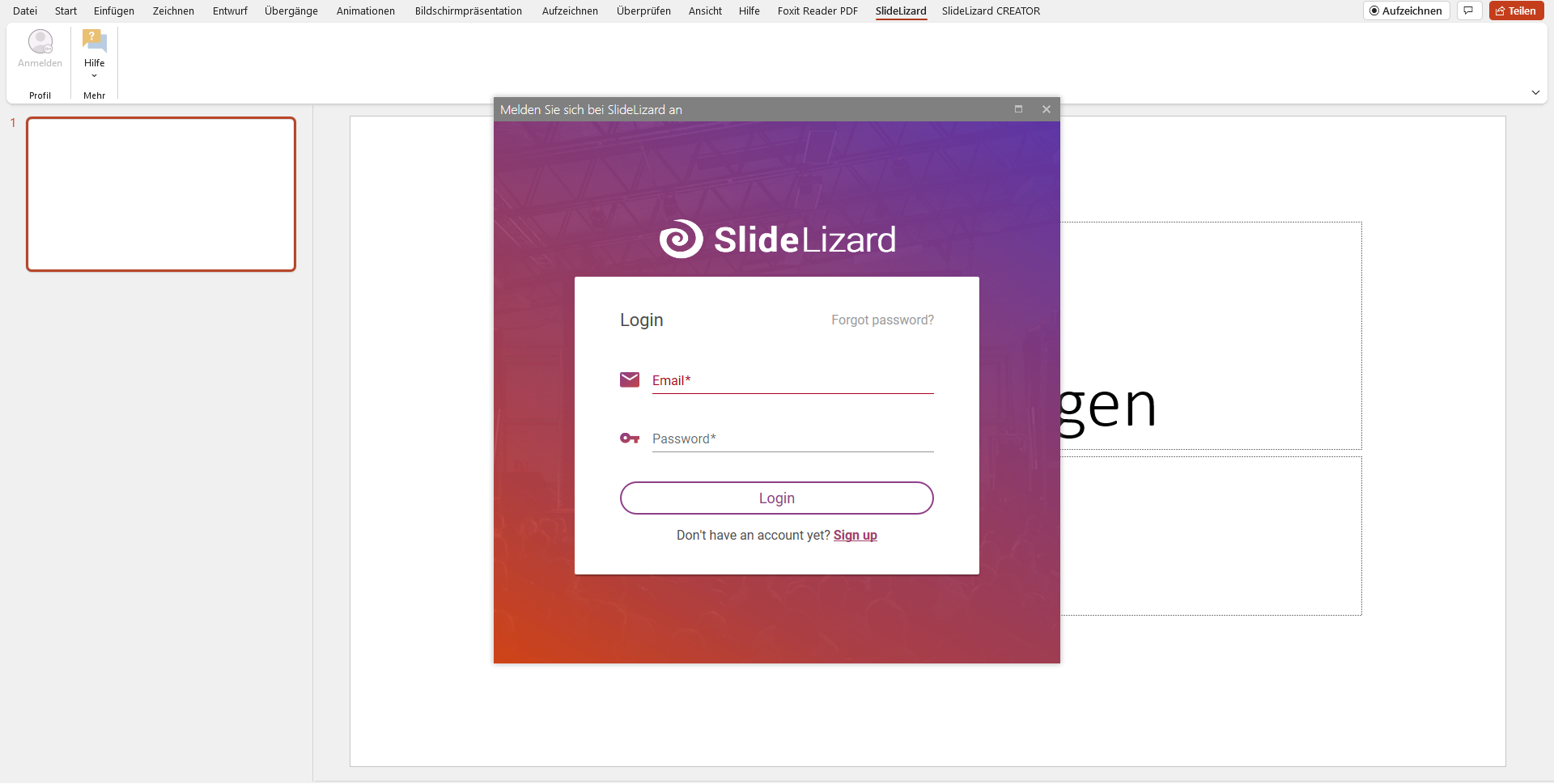
Login and save your project.
-
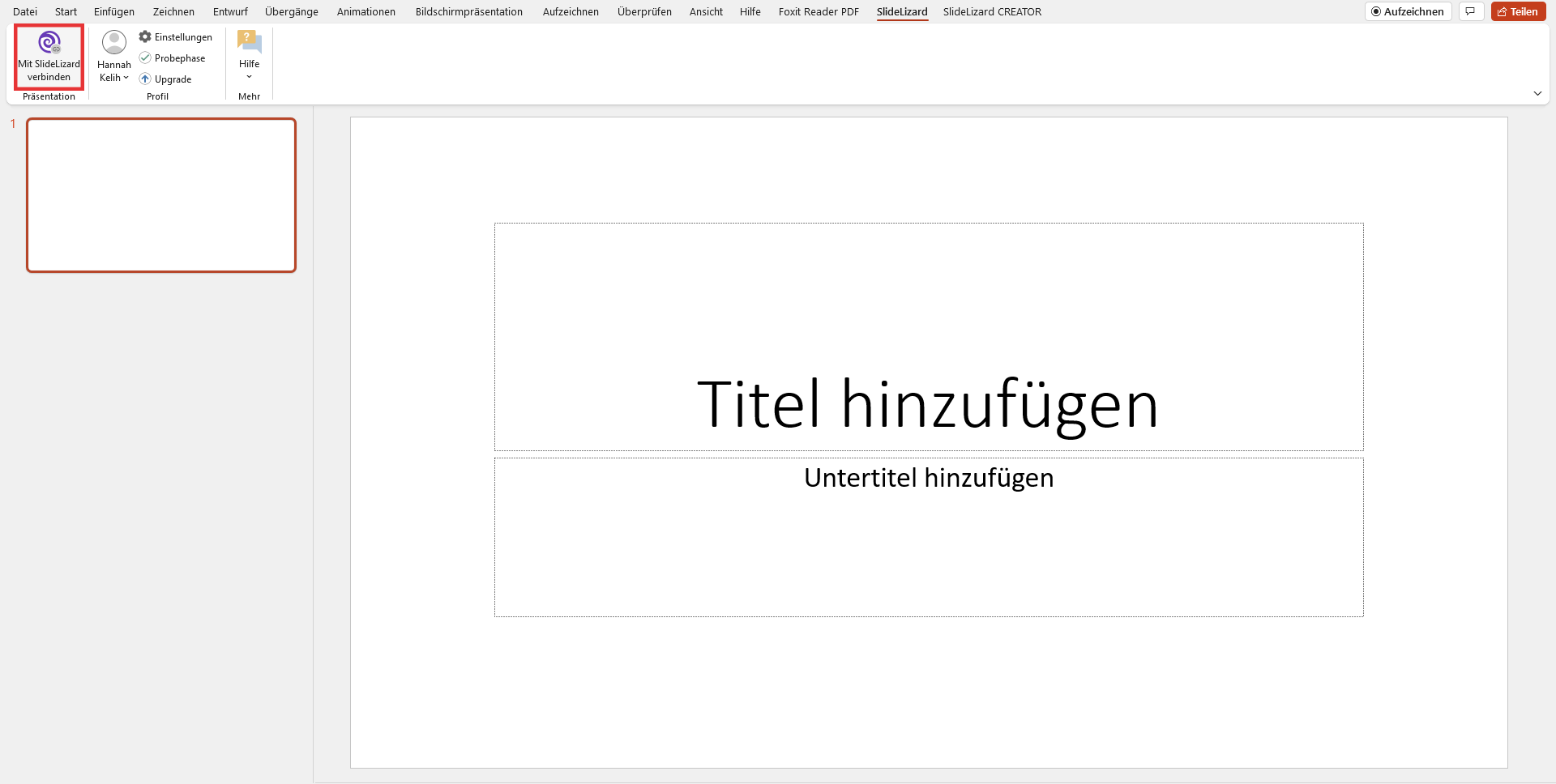
Go to "Connect with SlideLizard".
- Share information about your presentation.
-
In the next step you will find the options to share your slides with your
viewers.
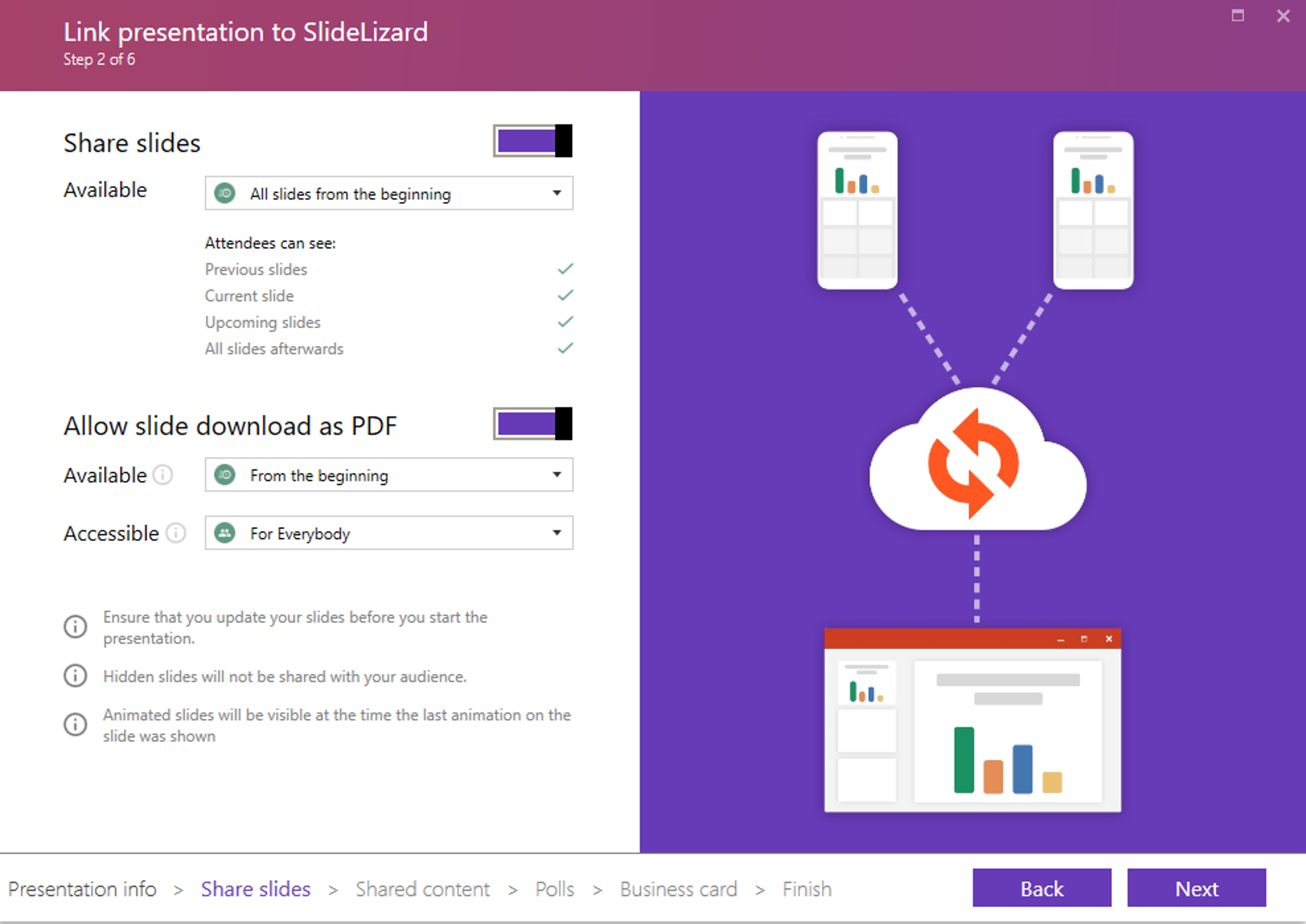
- Now set your desired settings. Your audience can now download your slides as PDF after or during your presentation (depending on your settings).


FAQ
What is a PDF?
PDF means Portable Document Format. So simply put, a PDF file is a file that looks the same on any device, no matter what operating system or hardware. This has its advantages, as the original formatting of the author of the PDF is preserved.
How to insert a pdf in powerpoint?
- Insert a screenshot of the PDF
- Insert PDF as object
- Insert PDF as link
- Convert PDF online
- Share slides with SlideLizard
How to share slides in powerpoint with your audience?
- First install SlideLizard.
- Open the presentation you wish to share.
- Go to "Connect with SlideLizard".
- In the next step you will find the options to share your slides with your viewers.
- Your audience can now download your slides as PDF after or during your presentation (depending on your settings).


